 AI
AI  Hướng dẫn AI
  Claude
  ChatGPT
  Gemini
  Thư viện Prompt
  Công nghệ
  Học IT
  Tiện ích

Nghịch lý AI: Khi sự hỗ trợ biến thành "cái nạng" làm thoái hóa tư duy con người.

Trợ năng (a11y) trong phát triển frontend với AI

Phía sau chiếc hộp đen: Khi AI có thể diễn giải được (Explainable AI - XAI)

Tái sử dụng và mở rộng quy mô nội dung mạng xã hội với AI
TOP công cụ theo dõi khả năng hiển thị tìm kiếm AI và thứ hạng AI tốt nhất
 Khám phá TOP công cụ AI Rank Tracker hàng đầu như SE Ranking, Profound và Otterly.AI, giúp theo dõi khả năng hiển thị tìm kiếm trên ChatGPT, Gemini, Copilot và Google AI Overviews.
Tự động hóa file và thư mục bằng Python với AI
Xây dựng các script Python để sắp xếp file vào thư mục, đổi tên file hàng loạt, tạo bản sao lưu tự động và giám sát những thư mục để phát hiện thay đổi — tất cả đều với sự hỗ trợ của AI.Tại sao nên sử dụng Python để tự động hóa? Cách AI giúp tăng cường khả năng này
Học cách tự động hóa các tác vụ hàng ngày bằng Python và Trí tuệ nhân tạo (AI) — từ quản lý file và xử lý dữ liệu đến thu thập dữ liệu web, API.Hướng dẫn tạo ảnh minh họa thơ, truyện kiểu sách lật
Thay vì tạo một hình ảnh duy nhất cho toàn bộ bài thơ, việc phân tích nội dung và chia thành các phân cảnh riêng biệt giúp AI hiểu rõ hơn diễn biến của câu chuyện, hành động của nhân vật.TOP công cụ AI hỗ trợ viết luận văn, nghiên cứu khoa học
Khám phá TOP công cụ AI hỗ trợ viết nội dung học thuật tốt nhất năm 2026 như Grammarly, Jenni AI, Scite, Litmaps và thesify ,giúp nghiên cứu, quản lý tài liệu và viết luận văn hiệu quả hơn.




Xây dựng Production Page trong phát triển frontend với AI
Trong bài học trước, bạn đã tối ưu hóa cho các chỉ số Core Web Vitals — LCP, CLS và INP. Giờ hãy kết hợp tất cả lại: xây dựng một trang web hoàn chỉnh, có ngữ nghĩa, đáp ứng tốt trên nhiều thiết bị, dễ truy cập và nhanh chóng.Cách tạo báo cáo tài liệu sinh động qua Gemini
Gemini là một trong những công cụ AI được phát triển nhằm hỗ trợ người dùng trong nhiều lĩnh vực khác nhau, trong đó có khả năng phân tích và tạo báo cáo từ tài liệu.TOP tiện ích mở rộng AI tốt nhất cho Google Chrome
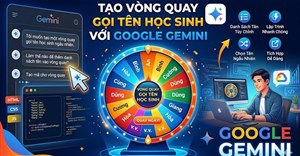
Khám phá những tiện ích AI tốt nhất cho Chrome năm 2026 như ChatGPT for Chrome, Grammarly AI, Jasper AI, Notion AI và Browse AI giúp tăng năng suất học tập và làm việc.Hướng dẫn tạo vòng quay gọi tên học sinh
Chỉ với một câu lệnh mô tả yêu cầu, Gemini có thể tạo ra một ứng dụng vòng quay gọi tên học sinh hoàn chỉnh dưới dạng trang web HTML, giúp giáo viên dễ dàng sử dụng ngay trên máy tính hoặc màn hình trình chiếu.Mẹo nhập Context hiệu quả trong Cursor
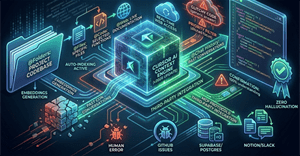
Cách thêm Context vào Cursor AI giúp AI hiểu sâu codebase, tối ưu câu trả lời và tự động hóa lập trình chính xác hơn.



Tối ưu hóa hiệu năng phát triển frontend với AI
Core Web Vitals là các chỉ số của Google về trải nghiệm người dùng và chúng ảnh hưởng trực tiếp đến thứ hạng tìm kiếm. Một trang web đẹp và dễ truy cập nhưng mất 5 giây để load trên thiết bị di động sẽ có thứ hạng thấp hơn và mất người dùng.Prompt tạo ảnh World Cup siêu điện ảnh bằng AI
Chia sẻ prompt giúp tạo ảnh bóng đá phong cách World Cup với sân vận động tương lai, hiệu ứng mưa, pháo hoa và chất lượng điện ảnh bom tấn.Hướng dẫn tạo trò chơi đoán từ trên Educaplay
Alphabet Game trên Educaplay là dạng game đoán từ qua 1 chữ cái và gợi ý, giúp học sinh học ôn tập từ vựng, khái niệm hoặc nội dung bài học theo cách thú vị hơn.Video biến ảnh thật thành nghệ thuật cắt giấy 3D nhiều lớp bằng AI
Hướng dẫn biến ảnh thật thành nghệ thuật cắt giấy 3D nhiều lớp bằng AI – từng bước thêm ảnh, nhập prompt, lưu kết quả như tác phẩm thủ công.Thiết kế đáp ứng và ưu tiên thiết bị di động trong phát triển frontend với AI
Thiết kế đáp ứng đảm bảo giao diện của bạn hoạt động từ điện thoại 320px đến màn hình 4K. Với lưu lượng truy cập di động vượt qua desktop trên toàn hệ thống, thiết kế ưu tiên di động không phải là tùy chọn — mà là điểm khởi đầu mặc định.




Hướng dẫn tạo kịch bản từ video triệu view bằng TikViral AI
Với TikViral.biz, người dùng có thể phân tích video và hỗ trợ xây dựng kịch bản video chỉ trong vài phút. Công cụ sẽ dựa theo kịch bản từ nội dung phân tích được và phát triển kịch bản tương tự để bạn tự làm video.Video cách nhận và sử dụng ChatGPT API Key
Với việc phát hành API, OpenAI đã mở ra khả năng đưa ChatGPT đến với mọi người. Giờ đây, bạn có thể tích hợp liền mạch các tính năng của ChatGPT vào ứng dụng của mình.TOP công cụ AI tạo bài thuyết trình tốt nhất
Khám phá những công cụ AI tạo slide tốt nhất năm 2026 như Plus AI, Copilot, Gamma, SlidesAI và MagicSlides. So sánh tính năng, ưu nhược điểm và chất lượng bài thuyết trình.Xây dựng các thành phần UI với AI
Bạn đã nắm vững kiến trúc CSS hiện đại — Grid, Flexbox, Container Queries và design token. Giờ hãy cùng xây dựng các thành phần sử dụng những công cụ bố cục đó: thẻ (card), cửa sổ pop-up (modal), menu drop-down (dropdown) và biểu mẫu (form).Hướng dẫn ghép ảnh trên Google Flow
Ngoài tính năng tạo video trên Google Flow theo nhiều chủ đề thì bạn có thể tận dụng luôn Flow ghép ảnh hoàn chỉnh để tạo video từ ảnh kết quả, mà không cần tới công cụ ghép ảnh khác.




Cách sử dụng ChatGPT API: Hướng dẫn đầy đủ từ A-Z
Với việc phát hành API, OpenAI đã mở ra khả năng đưa ChatGPT đến với mọi người. Giờ đây, bạn có thể tích hợp liền mạch các tính năng của ChatGPT vào ứng dụng của mình.TOP công cụ tạo giọng nói AI tốt nhất
Khám phá TOP công cụ AI tạo giọng nói tốt nhất năm 2026 như ElevenLabs, Speechify, WellSaid,... So sánh tính năng, ưu nhược điểm và khả năng tạo giọng đọc tự nhiên.Kiến trúc CSS hiện đại
Grid, Flexbox, Container Queries, thuộc tính tùy chỉnh và các lớp xếp tầng giải quyết những vấn đề trước đây cần JavaScript hoặc các thủ thuật phức tạp. AI tạo CSS tốt — nhưng thường mặc định sử dụng các mẫu cũ hơn khi có những giải pháp hiện đại.Tạo ảnh học từ vựng chỉ bằng 1 câu lệnh
Thông qua các công cụ tạo hình ảnh AI như ChatGPT, việc tạo ảnh học từ vựng đã trở nên đơn giản hơn bao giờ hết. Chỉ cần nhập một câu lệnh ngắn gọn, người dùng có thể tạo ngay những hình ảnh sinh động, hấp dẫn và phù hợp với nội dung từ vựng cần học.Kiểm tra tính chính xác của Semantic HTML do AI tạo
Hãy học cách viết Semantic HTML giúp cải thiện khả năng truy cập, SEO và khả năng tương thích với trình đọc màn hình — và cách kiểm tra tính chính xác về ngữ nghĩa của HTML do AI tạo ra.




TOP công cụ AI hỗ trợ Microsoft Word tốt nhất
Tìm hiểu Word AI là gì và khám phá TOP công cụ AI hàng đầu cho Microsoft Word năm 2026 như Copilot, Grammarly, QuillBot và GPT for Work. So sánh tính năng và ưu nhược điểm chi tiết.AI đóng vai trò trợ thủ đắc lực cho phát triển Frontend
Xây dựng giao diện web hiện đại, đáp ứng, dễ truy cập với AI — HTML ngữ nghĩa, kiến trúc CSS, thiết kế thành phần và tối ưu hóa hiệu suất.













Cũ vẫn chất
-

Kí tự khoảng trống Liên Quân, ký tự khoảng trống Liên Quân
3 ngày 19 -

Wukong DTCL mùa 11, hướng dẫn Ngộ Không TFT mùa 11
3 ngày -

Hàm SUMIFS, cách dùng hàm tính tổng nhiều điều kiện trong Excel
3 ngày 8 -

Hướng dẫn tìm và tham gia kênh Telegram
3 ngày -

Lệnh UPDATE trong SQL
3 ngày 1 -

Hướng dẫn hủy SMS Banking VietinBank rất đơn giản
3 ngày -

7 dịch vụ lưu trữ đám mây tốt nhất để sao lưu và chia sẻ file
3 ngày -

Cách đặt mật khẩu cho máy tính Windows 10, cách đổi mật khẩu Win 10
3 ngày -

Cách tải Valorant VNG trên PC, tải Valorant trên máy tính
3 ngày 36 -

99+ Cap về bản thân, stt về bản thân hay, đáng suy ngẫm
3 ngày 1


 AI
AI  Copilot
  Grok
Grok  n8n
n8n  Thư viện Prompt
  Hướng dẫn AI
  Công nghệ
  Ứng dụng
  Hệ thống
  Game - Trò chơi
  iPhone
  Android
  Làng Công nghệ
  Học CNTT
  Hàm Excel
  Học Python
  Download
  Video
Video  Cuộc sống
  Khoa học